How to reset emojis on iPhone
The iPhone has no button that resets only the emoji keyboard. The one way is to reset the keyboard dictionary: Settings › General › Transfer or Reset iPhone › Reset › Reset Keyboard Dictionary.
After that, Frequently Used shows Apple’s standard set again. The words your keyboard has learned from your typing are erased too.
Reset Frequently Used, step by step
- Open Settings and tap General.
- Scroll to the end and tap Transfer or Reset iPhone.
- Tap Reset, then tap Reset Keyboard Dictionary.
- Enter your passcode and confirm with Reset Dictionary.
- Open the emoji keyboard. Frequently Used shows Apple’s standard emojis again and fills up anew as you type.
What the reset erases
Reset Keyboard Dictionary is made for typing, not for emojis. It erases every word the keyboard has learned from you: names, slang, the corrections you taught it. For a while, autocorrect will get those wrong again.
Your text replacements stay. They live under Settings › General › Keyboard › Text Replacement and are not part of the dictionary. Nothing else on the iPhone changes, and no emoji is deleted.
What iOS cannot do
- Remove one emoji from Frequently Used. It is all or nothing.
- Turn the Frequently Used section off.
- Choose how many emojis the section shows.
So an emoji you tapped by accident stays in Frequently Used until others push it out, or until you reset everything.
If one emoji or sticker stays after the reset
On iOS 18, some people report a single emoji or sticker that stays in Frequently Used even after the reset. That is a fault in iOS, not in your settings. What has helped some of them: open Settings › General › Keyboard, turn Stickers off, open the emoji keyboard once, and turn Stickers on again.
The other way: a keyboard with its own reset
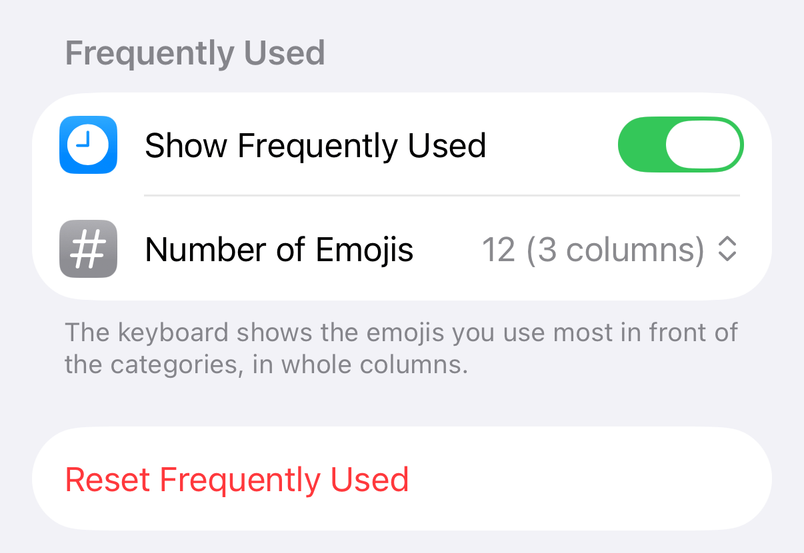
Tidymoji is an emoji keyboard for iPhone that keeps its own Frequently Used section, apart from Apple’s. In the Tidymoji app, Reset Frequently Used clears that section and nothing else. No learned words are lost, because Tidymoji has no dictionary.
- Choose how many emojis Frequently Used shows, in whole columns of the keyboard, up to 50.
- Turn the section off, and the keyboard starts with your own favorites.
- Hide emojis you never use, so they cannot show up at all.