How to change emoji skin color on iPhone
Touch and hold an emoji that shows a hand or a person, then slide to the skin tone you want. The emoji is typed in that tone.
The iPhone remembers the choice: the next time, the keyboard shows that emoji in your tone right away.
Change the skin tone, step by step
- Open the emoji keyboard: tap the emoji key, or touch and hold and choose Emoji.
- Find an emoji that shows a hand or a person, the thumbs up for example.
- Touch and hold it. A row appears with yellow and five skin tones.
- Slide to a tone and let go. The emoji is typed in that tone.
- From now on the keyboard shows this emoji in the tone you chose. To change it again, touch and hold it once more.
Which emojis have skin tones
Hands, people, and parts of the body have skin tones. Smileys do not: they stay yellow. Emojis that show two people let you choose a tone for each person.
How iOS remembers your choice
iOS saves the skin tone with the emoji you chose it on. If another hand or person emoji still shows yellow, touch and hold that one too and pick your tone.
To go back, touch and hold the emoji and choose yellow.
The other way: one skin tone for the whole keyboard
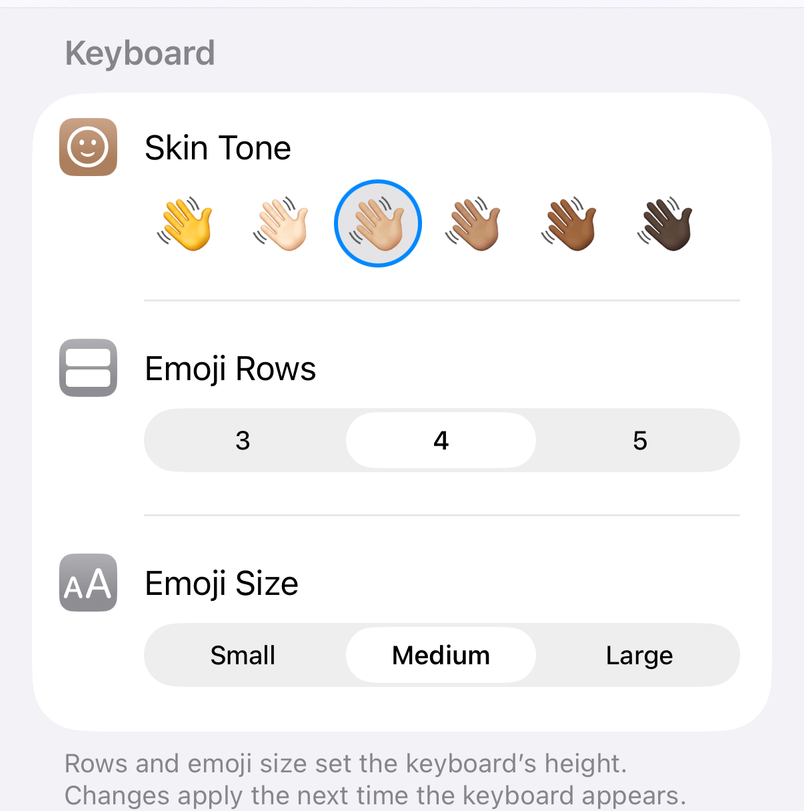
Tidymoji is an emoji keyboard for iPhone where you choose your skin tone once, in the app. It applies to every emoji that has skin tones, so the keyboard needs no picker on each one. A change shows the next time the keyboard appears.